
Current free limits
Results expire automatically after 1 hour.
- 4 imagesper job
- 5MBper file
- 20MBtotal upload
Instructions
Learn how to create square product images, resize by width, and convert image formats.
Quick Start
Free Upload Limits
Free users can convert up to 4 images per job.
Results expire automatically after 1 hour.
Larger jobs for production workflows.
Square Resize Styles
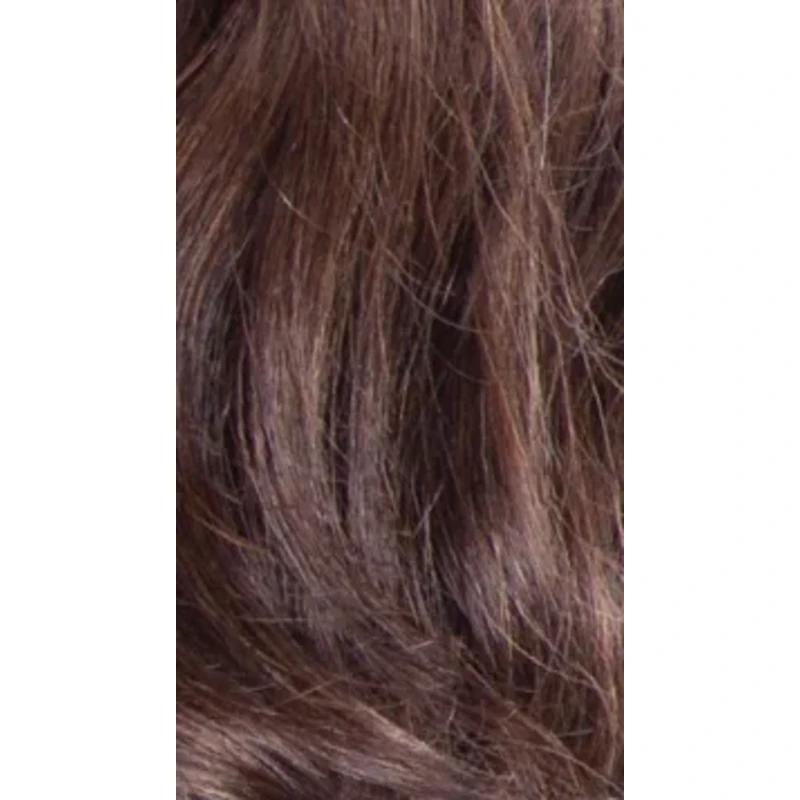
Keeps the full original image and adds white space if needed. Best for product images where nothing should be cropped.
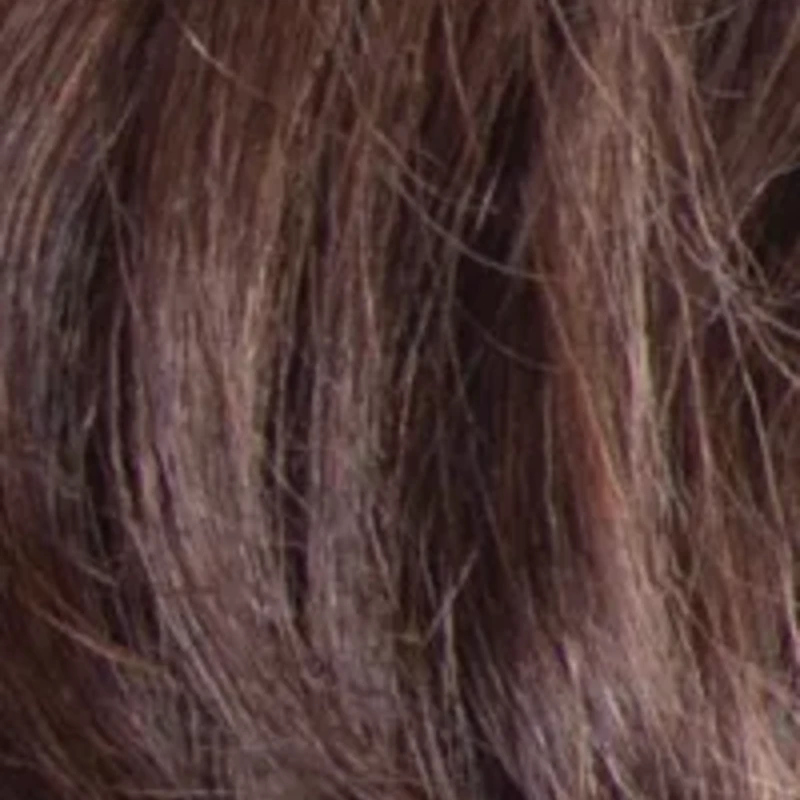
Fills the square by cropping from the center. Best when you want a clean full-square image without white space.
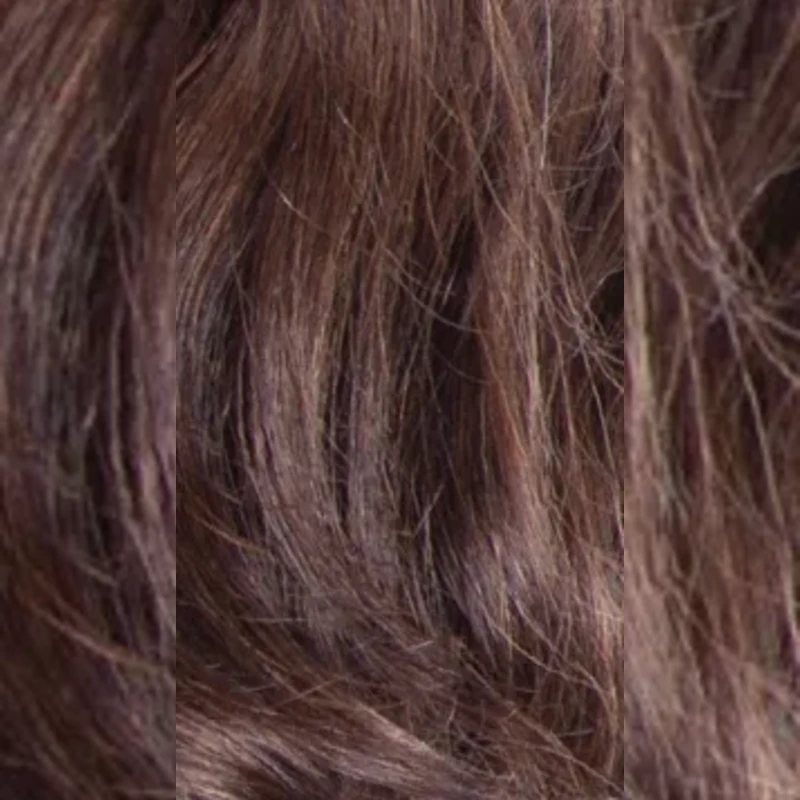
Extends the image edges to fill the square while keeping the main image centered. Best when you want to avoid plain white padding.
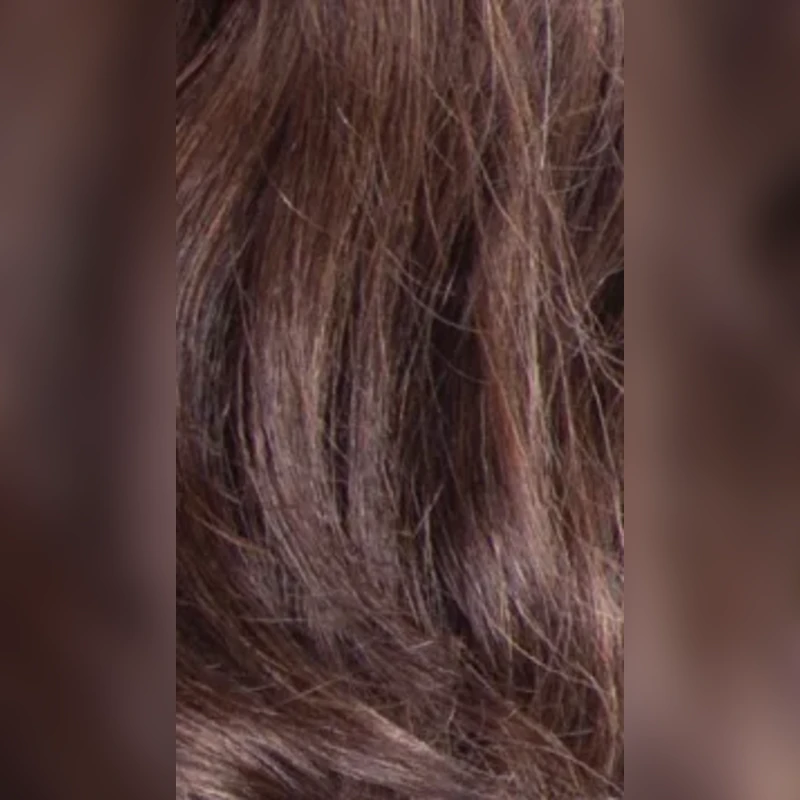
Adds a blurred version of the image behind the original image. Best for a modern, polished look without cropping the main subject.
Proportional Resize
Resize an image by width while keeping the original aspect ratio. This does not crop, stretch, or add padding.
Format Converter
Convert images to WebP, JPG, or PNG without resizing. The original dimensions are preserved.
When converting transparent images to JPG, the transparent background will be flattened to white.
Why Resize Images?
Large images can slow down websites, increase loading time, and make product pages feel less professional. Resizing images helps create a consistent layout, faster loading pages, and cleaner product listings.
Recommended Use Cases
Use Square Resize with White Padding or Edge Extend.
Use Proportional Resize to reduce image width while keeping the original ratio.
Use Format Converter and choose WebP.
Use JPG.
Use PNG or WebP.